- 5/18/2026
- Updated 5/18/2026
Remote Work Typing Preflight on a Shared Laptop
Remote workers can run typing preflight on a shared or docked laptop: key map, latency, and bounce in minutes before standups, tickets, or scored typing tests.
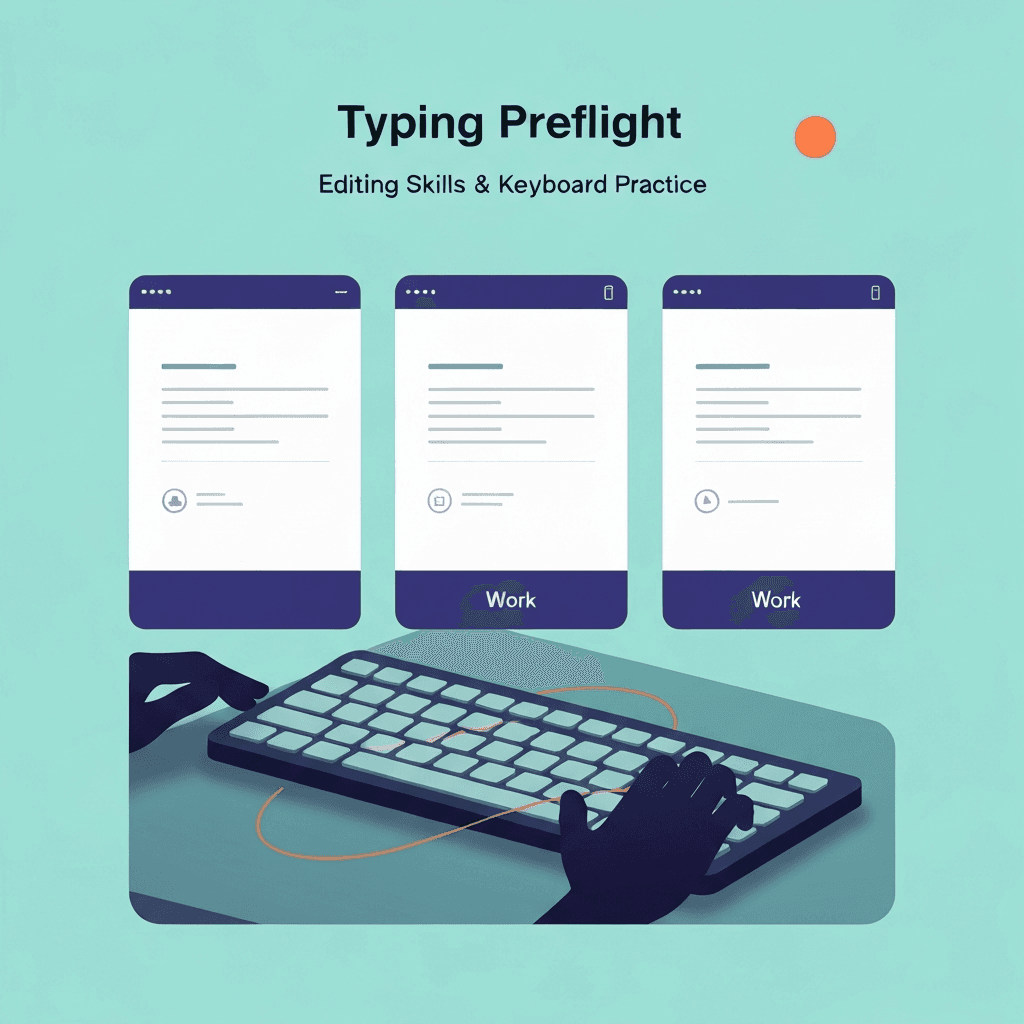
Docked versus undocked can feel like two keyboards
USB-C hubs introduce latency and occasional key drops. Run preflight in the configuration you use for live meetings and tests.
Bluetooth mice and keyboards competing on one dongle are a common silent culprit.
Sample latency on the cable and profile you will use for interviews, not only on battery saver at a café.
Sample latency on the cable and profile you will use for interviews, not only on battery saver at a café.
Try typing preflight
Walk the key map, sample browser latency, and check debounce in one checklist—then read your boarding pass before a timed WPM test.
Start typing preflightShared machines need a fast hygiene check
Crumb-filled scissors switches and swapped keyboard layouts show up in step one faster than in prose.
Latency step two catches “everything feels slow” after OS updates pushed overnight.
If preflight passes but WPM still swings, compare passage difficulty before buying hardware.
Finish step one before blaming latency: a dead Shift key mimics sloppy accuracy on timed tests.
Document results for IT without drama
Boarding pass summaries plus a screenshot of latency bands beat subjective Slack messages.
If preflight passes and tickets still lag, the bottleneck is probably app-level, not your fingers.
Sample latency on the cable and profile you will use for interviews, not only on battery saver at a café.
Pair cleared preflight with one calm 1-minute test at target accuracy, not sprint mode.
Continue practicing
This cluster is about benching before you benchmark. Run the three-step preflight when setup changes, read the boarding pass, then open a one-minute test with fewer hardware surprises.