- 5/15/2026
- Updated 5/15/2026
Input Lag Test: Keyboard Path vs Display Pipeline
Input lag tests confuse people when display modes, VRR, and HDR add their own queues. Learn how to attribute lag to keyboard vs screen for fair upgrades.
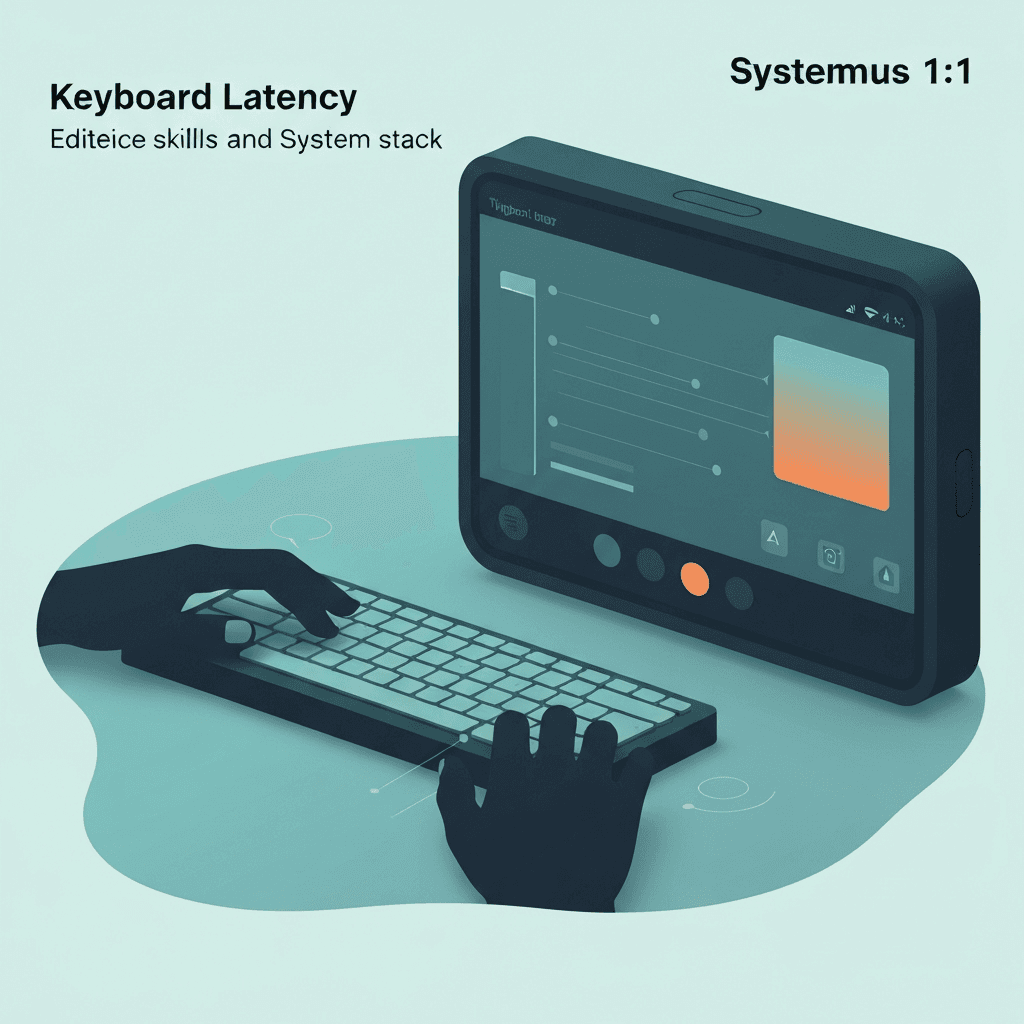
Two different queues combine
Your finger press must traverse keyboard firmware, transport, OS, application, compositor, and panel scanning order.
Changing only the display can move end-to-end numbers even when the keyboard is identical.
USB hub depth matters. A direct motherboard port is the fairest baseline before you blame a keyboard firmware update.
Treat polling Hz as a ceiling, not a personality. Firmware debounce and transport still dominate what your fingers feel day to day.
Try the latency tester
Sample end-to-end delay in milliseconds inside the same browser you use for Type Faster. Log median and jitter after cable, receiver, or power changes—then rerun a timed test to see if rhythm calms down.
Open keyboard latency testerKeep display settings fixed between samples
Match resolution, refresh mode, and scaling when comparing keyboards so the GPU workload does not swing.
Disable exotic overlays temporarily if they inject another compositing pass.
If latency looks fine but rhythm still feels wrong, return to accuracy drills—sometimes hesitation masquerades as hardware lag.
After you change cables or receivers, resample latency before you judge a typing score from the same night. Fresh numbers prevent you from blaming technique for a flaky stack.
Still validate typing feel on Type Faster
Once display settings are stable, use the latency tester for keyboard-focused variance, then run a timed passage.
If scores improve without hardware swaps, your environment—not your switches—was the culprit.
Pair browser latency samples with the same browser profile you use for Type Faster benchmarks so the pipeline matches reality.
If one key column drifts in latency while others stay tight, cross-check with the full key map before you assume the OS is at fault.
Continue practicing
This guide is about input delay and sampling. Run the latency tester to capture milliseconds and jitter, then use a typing test to see if scores stabilize.